Online booking replaces the calls that fail — the evening enquiry, the person who will not leave a voicemail, the one who would rather not interrupt you. Three settings decide whether it helps you or fills your week with the wrong appointments.
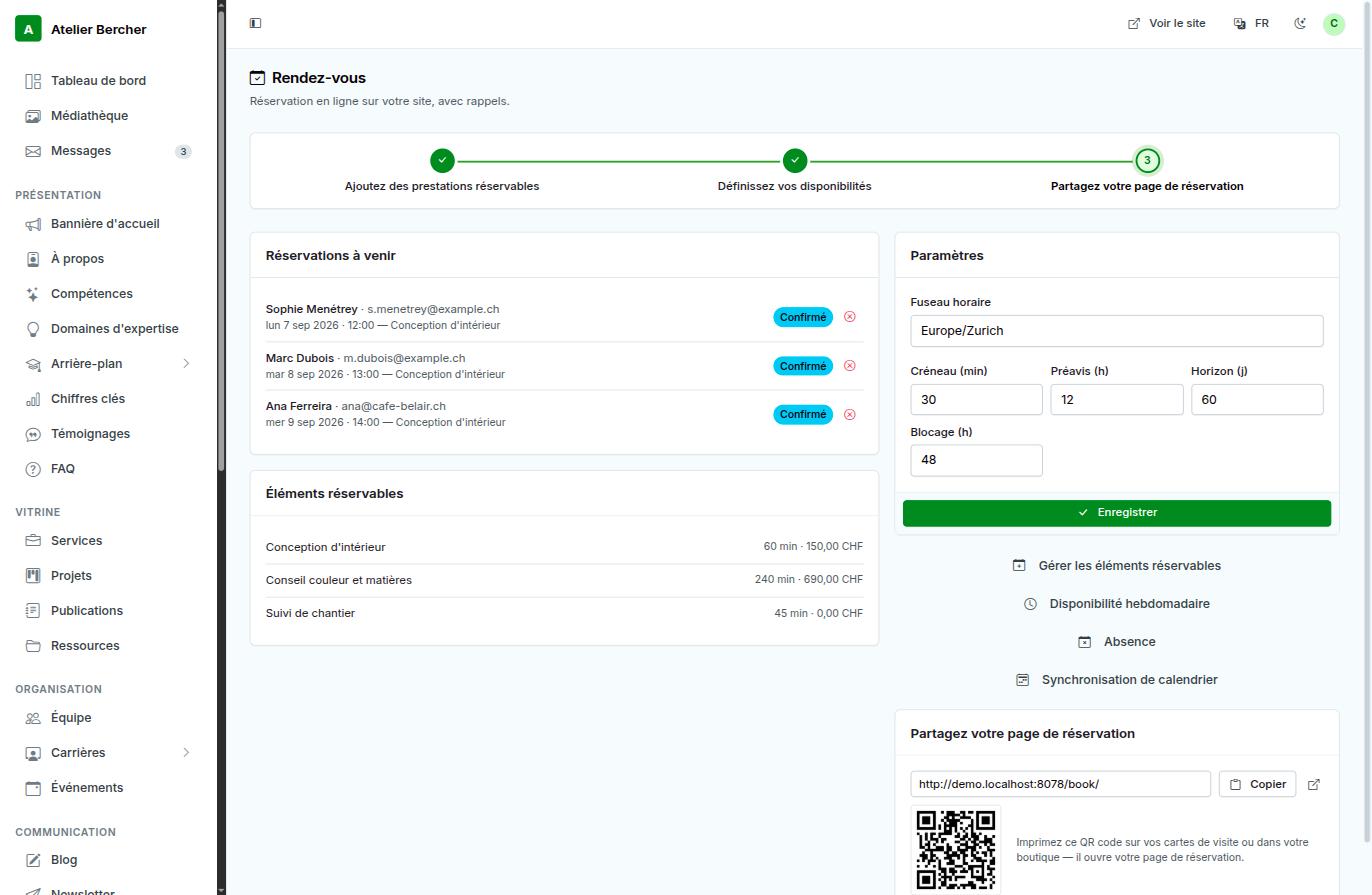
Step 1 — what can be booked
In Manage bookable items, list only the work whose duration you can predict, with its length and its price. A quote visit, yes. «Repair», no — you do not yet know if it is twenty minutes or a day.
Step 2 — when you are available
Weekly availability holds your normal hours; Absence blocks a holiday. Publish narrower hours than you actually work: the margin absorbs the job that runs over.
Step 3 — the four rules that protect your diary
- Slot (min) — the granularity of the times offered. 30 minutes suits most trades.
- Notice (h) — how far ahead someone must book. Twelve hours stops a booking for eight tomorrow morning while you sleep.
- Horizon (days) — how far into the future the calendar opens. Sixty days is plenty.
- Buffer (h) — the gap kept around an existing appointment, so two jobs never touch.
Sharing your booking page
The panel at the bottom right gives the address of your public booking page and a QR code. Print it on your business cards or stick it in your shop window: someone points a phone at it and lands on your availability.
Your time zone is at the top of the settings. Check it once: an appointment confirmed in the wrong zone is an appointment missed by an hour, and the visitor will not know it was a setting.